Before-After Slider for Squarespace - Step by Step
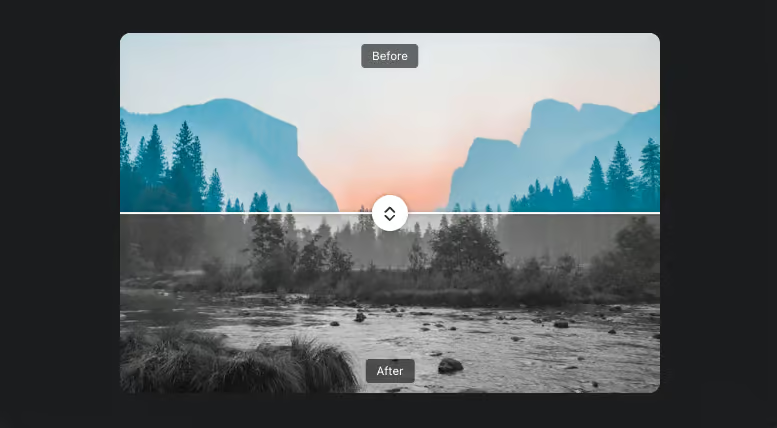
Squarespace does not have a built-in before-after slider. But you can add one to any page with Code Injection and a Code Block. Takes about three minutes.
The slider above is a live demo - drag the handle to compare both images. Here is how to put that on your Squarespace site.
What you need
- A Squarespace site on a Core plan or higher - Basic and Personal plans do not support Code Injection or JavaScript in Code Blocks
- Two images you want to compare
The before-after slider is free. No OneType account needed.
Step 1: Add the script tag
- In Squarespace, go to Website > Website Tools > Code Injection
- Paste this in the Header field:
<script src="https://cdn.transforms.onetype.ai/script/57095981335841558d328d599e6f5322.js"></script>
- Click Save
This loads the script on every page. It only activates where you add the slider HTML.
Step 2: Add the slider to a page
- Edit the page where you want the slider
- Click an insert point or Add Block
- Select Code
- Click the pencil icon to open the block editor
- Set the Type dropdown to HTML
- Make sure Display Source is turned OFF
- Paste this:
<div ot="before-after">
  <img src="YOUR_BEFORE_IMAGE_URL" alt="Before">
  <img src="YOUR_AFTER_IMAGE_URL" alt="After">
</div>
- Replace the image URLs with your actual images
- Click outside the block to save
Step 3: Preview your site
Important: the slider will not render inside the Squarespace editor. You need to preview or publish the page to see it working. Click the preview button or visit your live site.
Customization
Add these attributes to customize the slider:
- ot-direction="vertical" - slide top to bottom
- ot-label-before="Original" and ot-label-after="Edited" - text labels
- ot-position="30" - start at 30% instead of center
- ot-hover="true" - slider follows the mouse
Squarespace 7.0 users
If you are on Squarespace 7.0 (the older version) and the slider works on the first page but stops working when you navigate to another page, disable Ajax loading. Go to Design > Site Styles and uncheck Enable Ajax Loading. This is not an issue on Squarespace 7.1.
Get started
The before-after slider is completely free at transforms.onetype.ai. Grab the script tag from the Get Started page and you are good to go.
For all customization options and more use cases, check the main before-after slider guide.